Chrome Extension
The Droopify Chrome Extension adds buttons to Chrome to create drafts from supplier pages and to handle on Amazon the orders you purchase yourself.
Chrome Extension features
| Feature | Where you use it | Details |
|---|---|---|
| Create drafts | Amazon and AliExpress search and product pages | Create a draft |
| Purchase an Amazon order | Send to Chrome Extension panel of the Orders page | Send to Chrome Extension |
| Update Tracking | Orders with Manual Monitoring | Connect Order |
| Amazon Addresses Cleanup | Addresses page of your Amazon account | Section below |
| Proxy | Extension window | Section below |
The extension only works if you are logged in to Droopify in the same Chrome profile: if you are not, opening it opens the Droopify login page. To install it: How to install the Chrome Extension.
Creating drafts from Amazon and AliExpress pages
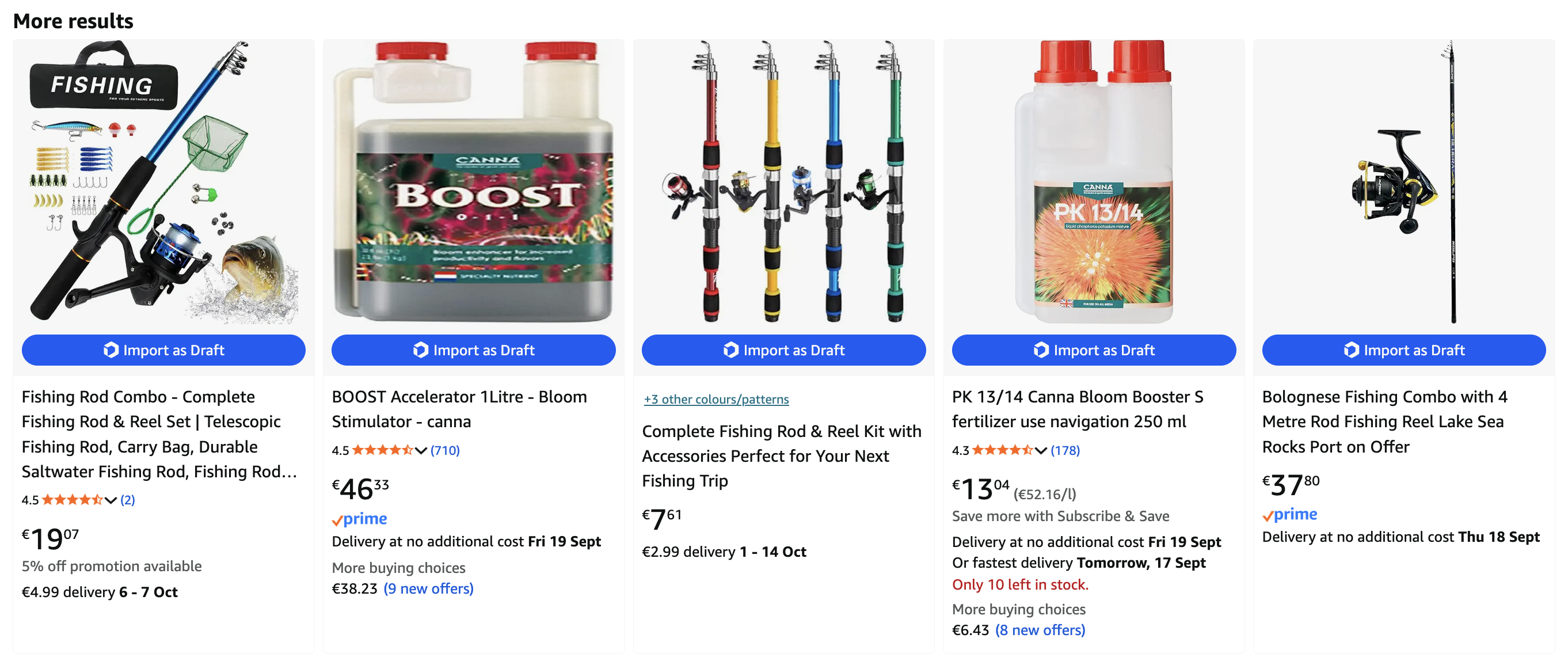
Under each product in the search results and on the product page, two blue buttons with the Droopify logo appear: Import variant creates the draft of that variant only, Import all variants of all variants. When the draft is created the button turns green; if it is not created it turns red.
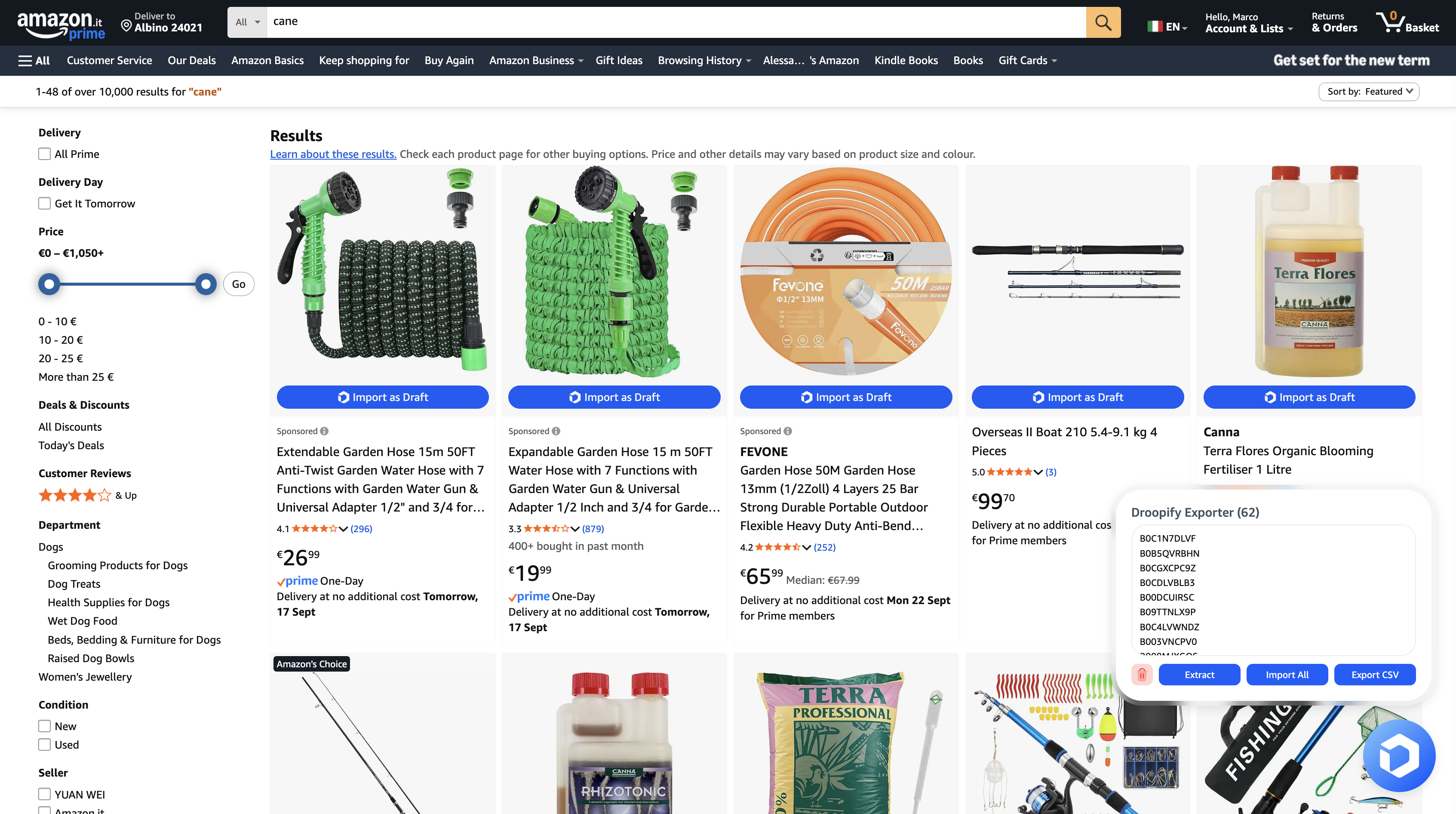
At the bottom right, the Droopify logo opens a panel to work on several products at once:
| Button | What it does |
|---|---|
| Extract | Collects the products on the page into the panel list |
| Import All | Creates a draft for each product in the list |
| Export CSV | Downloads the list as a CSV file |
| Red trash can | Empties the list |
Drafts go to the eBay store chosen in the extension window (Droopify icon in the Chrome bar). There you can also create them in all visible stores with Import to all visible stores, choose the eBay region for AliExpress drafts and turn on Amazon Auto Extract, which collects products while you browse.
Purchasing an Amazon order with the Chrome Extension
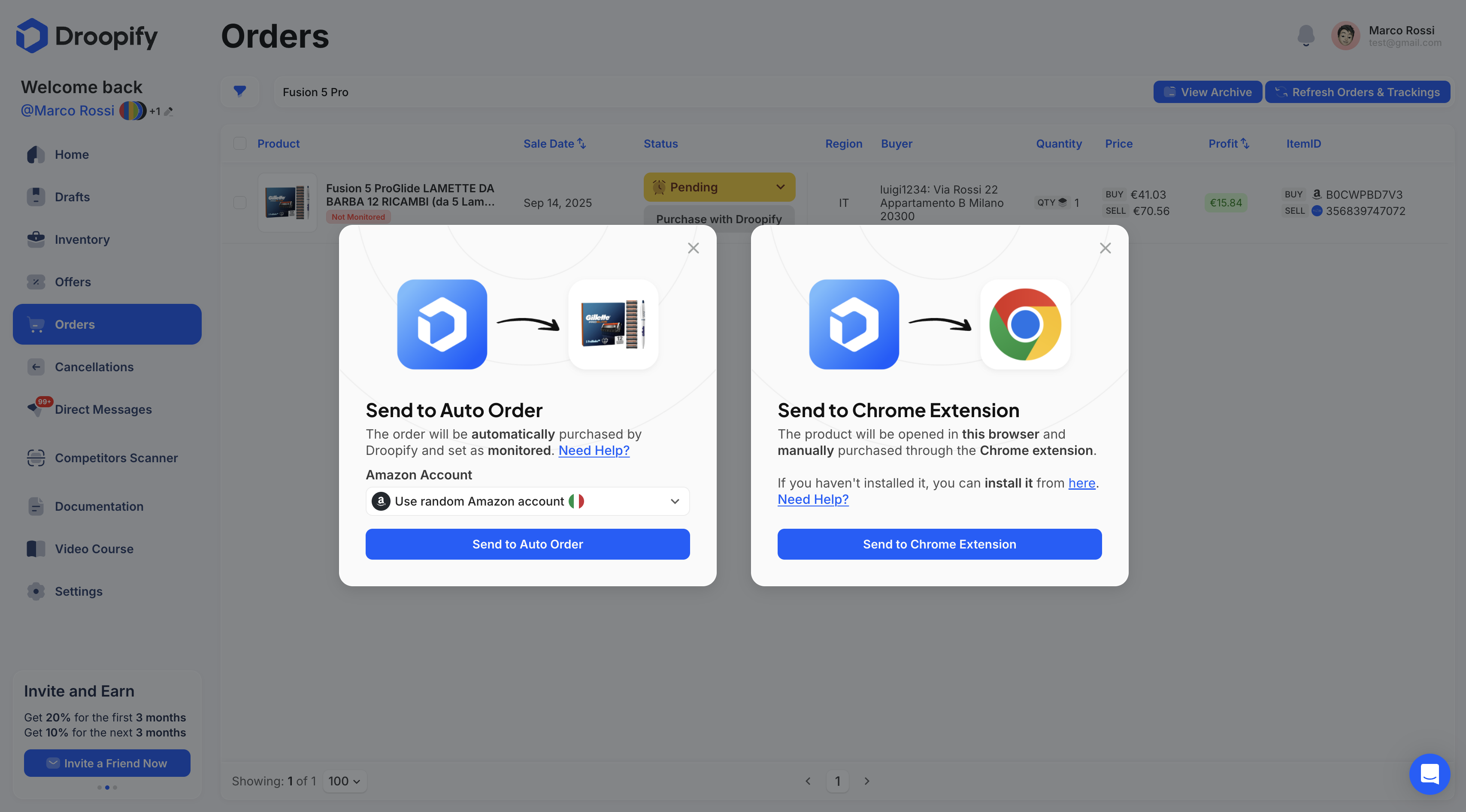
On the Orders page, on an Amazon order, click Purchase Product and then Send to Chrome Extension. The extension empties the Amazon cart, adds the product with the ordered quantity, ticks the product coupon if there is one and enters the customer's address: you check and confirm the payment. Then link the purchase with Connect Order.
Update Tracking with manual monitoring
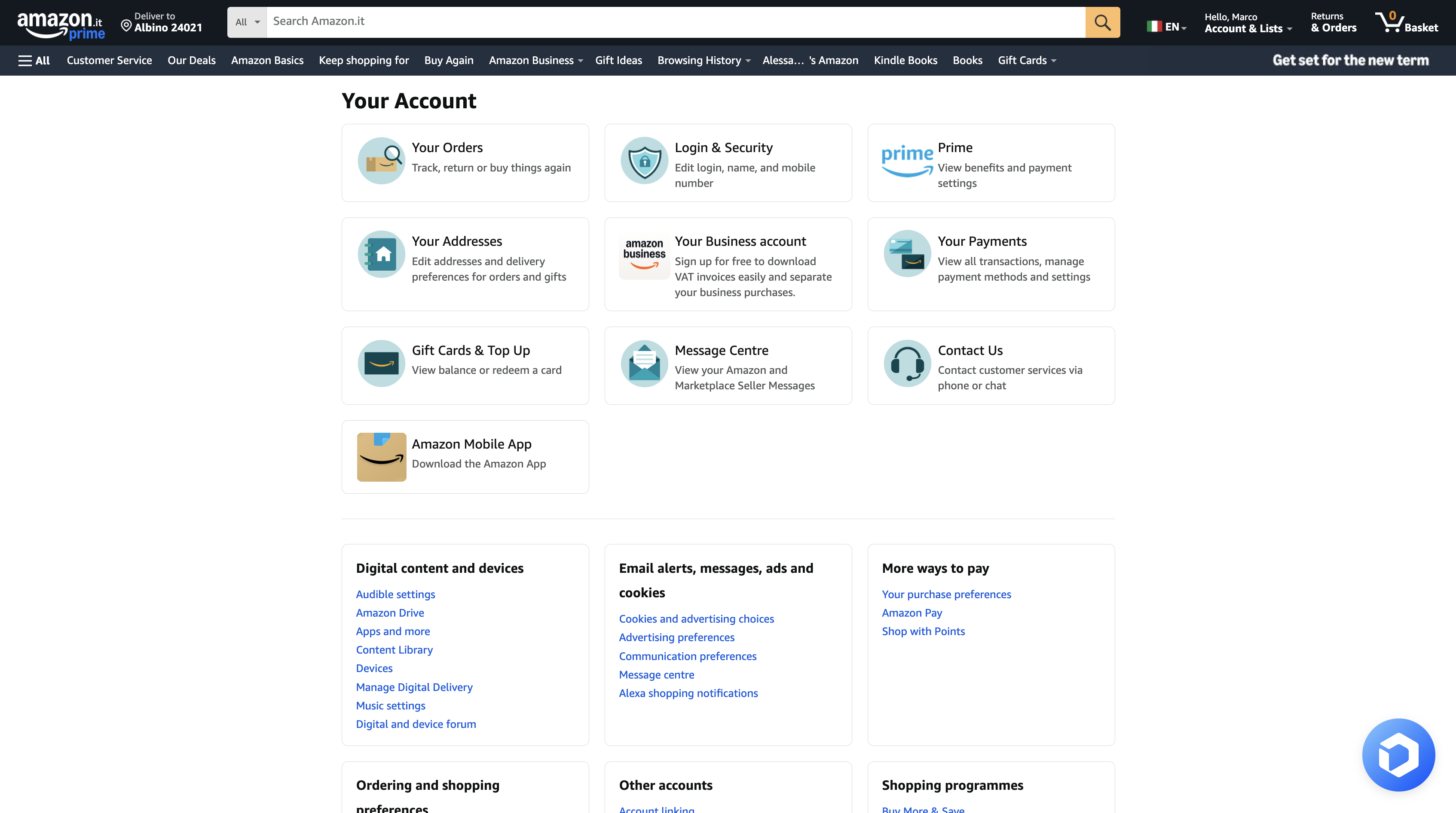
For orders with Manual Monitoring, the Update Tracking button on the Orders page opens the tracking page on Amazon: the extension reads the data, saves it in Droopify and closes the page by itself. The same button also appears in your Amazon order history, next to each shipment. At least 30 minutes must pass between two updates of the same order. Statuses and warnings: Order statuses.
Amazon Addresses Cleanup
Over time your Amazon account collects your customers' addresses. To remove them:
- Open the extension from the Chrome bar and turn on Amazon Addresses Cleanup.
- Open the addresses page of your Amazon account: the extension deletes the addresses one at a time.
The first two addresses in the list are never deleted, because they may be used as billing addresses. Turn the option off when you are done.
Chrome Extension proxy
In the Settings section of the extension window you can route the connection of that Chrome profile through a proxy, useful if you manage several Amazon accounts:
- Click Add/Edit Proxies List and paste your proxies, one per line, in the format shown in the field; then click Confirm.
- Choose the proxy in Proxy IP.
- Turn on Proxy.
Proxies are bought from an external provider.